
Hey guys,
Greetings from my cottage as well as from my research station in the countryside. Let’s move on to the second part of the project and see what we can do with the data we downloaded in the first part.
Firstly, I will give you a quick overview of what you will find in this post. The main steps will be:
- Loading the data from NASA POWER and ERA5 datasets and initial cleaning
- Descriptive statistics and quick comparison of the two datasets
- Seasonal wrangling of the data and creating seasonal datasets
- Seasonal visualisation of temperature and precipitation by Altair library
Quick recap of the project’s aim
This project has a simple goal: to create a climate dashboard for the location of my summer house and the surrounding area. The dashboard should be usable for different monitoring purposes, but the main focus will be on the climate change and its impact on the natural and agricultural processes. The intended dashboard should be interactive and user-friendly with simple and intuitive design. The project will primarily use the data from NASA POWER and ERA5 datasets, at some time in the future we will also include remote sensing data and other sources of information.
Initial data wrangling
Again, let’s start by importing the necessary Python libraries for data wrangling and visualization.
import xarray as xr # for accessing the Earth Data Hub
import requests # for acessing the NASA POWER database
import pandas as pd # for general data wrangling
import numpy as np # for minor task - labeling NaN values
import datetime as dt # for standard datetime formats
import altair as alt # for data visualization
from IPython.display import display # for displaying the dataframes in Jupyter NotebookNASA POWER and ERA5 datasets – cleaning and initial wrangling
In the first place, we are going to load the data from the NASA POWER and ERA5 datasets. As you remember, we have downloaded the data in the first part of the project and saved it as Excel files. Now we will load the data into Pandas DataFrames and take a look at the first 10 rows of each dataset.
NASAPOWER_data = pd.read_excel(r"C:dev_programmingVeille_VertedataNASA_POWER.xlsx")
ERA5_data = pd.read_excel(r"C:dev_programmingVeille_VertedataERA5.xlsx")
display(NASAPOWER_data.head(10))
display(ERA5_data.head(10)) # This can be written without the display() function as it is the last line of the cell.The results should look something like this:
| TMAX | TMIN | TEMP | IRRAD | TOA_IRRAD | RAIN | WIND | TEMPDEW | RH | DAY | LAT | LON | Power_ELEV |
|---|---|---|---|---|---|---|---|---|---|---|---|---|
| 3.5 | -2.75 | -0.41 | 2.64e+06 | 7.97e+06 | 0 | 6.1 | -3.06 | 83.29 | 1984-01-01 00:00:00 | 49.7321 | 15.5537 | 559.13 |
| 2.26 | -2 | 0.04 | 1.26e+06 | 8.02e+06 | 0.94 | 5.07 | -1.3 | 90.9 | 1984-01-02 00:00:00 | 49.7321 | 15.5537 | 559.13 |
| 7.28 | 0.58 | 2.99 | 1.72e+06 | 8.08e+06 | 0.72 | 5.51 | -0.59 | 78.33 | 1984-01-03 00:00:00 | 49.7321 | 15.5537 | 559.13 |
| 1.78 | -2.11 | -0.47 | 2e+06 | 8.14e+06 | 0.26 | 6.03 | -2.59 | 86.55 | 1984-01-04 00:00:00 | 49.7321 | 15.5537 | 559.13 |
| -0.25 | -2.87 | -1.65 | 1.72e+06 | 8.21e+06 | 1.3 | 3.7 | -3.33 | 89.44 | 1984-01-05 00:00:00 | 49.7321 | 15.5537 | 559.13 |
By the way, the table above was generated by the function print(NASAPOWER_data.head(5).to_markdown(index=False)) in a Jupyter Notebook, which can be very useful for generating tables in Markdown format.
Now it is time to check the range of the data. The first two lines check the minimum and maximum dates (“DAY” variable/column) in both datasets, and the last two lines check the number of rows in each dataset.
print(f"NASA Power: min {NASAPOWER_data["DAY"].min()}, max {NASAPOWER_data["DAY"].max()}")
print(f"ERA5: min {ERA5_data["DAY"].min()}, max {ERA5_data["DAY"].max()}")
print(len(ERA5_data))
print(len(NASAPOWER_data))The output should look like below. What we can see is that the ERA5 dataset has a longer time range and therefore more rows than the NASA POWER dataset. Therefore, in the next step we will filter the ERA5 data to match the time range of NASA POWER dataset.
NASA Power: min 1984-01-01 00:00:00, max 2026-08-12 00:00:00
ERA5: min 1950-01-01 00:00:00, max 2026-02-28 00:00:00
27818
15565By defining the start and end date of the one dataset, we can filter the other dataset to match the same time range and vice versa. So after using the following code, use it a second time to filter the NASA POWER dataset to match the time range of ERA5 dataset.
start_date = NASAPOWER_data["DAY"].min()
end_date = NASAPOWER_data["DAY"].max()

ERA5_data = ERA5_data[
    ERA5_data["DAY"].between(start_date, end_date)
]So after filtering the ERA5 dataset, we should have the same number of rows in both datasets. You can check it by len function again. Now, when we have the same time series in both datasets, we can advance to the descriptive statistics and compare both datasets by basic statistical measures. The following code will give us the descriptive statistics of the selected variables in both datasets.
NASA POWER and ERA5 datasets – descriptive statistics and comparison
NASAPOWER_data[["TEMP", "RAIN", "TMIN", "TMAX", "WIND"]].describe()| TEMP | RAIN | TMIN | TMAX | WIND | |
|---|---|---|---|---|---|
| count | 15341 | 15341 | 15341 | 15341 | 15341 |
| mean | 7.29313 | 1.93167 | 3.18527 | 11.6396 | 3.16959 |
| std | 8.57209 | 3.72209 | 7.63815 | 9.52206 | 1.43917 |
| min | -24.34 | 0 | -28.64 | -19.33 | 0.46 |
| 25% | 0.47 | 0.06 | -2.22 | 3.4 | 2.11 |
| 50% | 7.53 | 0.47 | 3.41 | 12.17 | 2.93 |
| 75% | 14.34 | 2.2 | 9.28 | 19.45 | 3.97 |
| max | 27.39 | 65.01 | 21.44 | 35.38 | 10.43 |
In the case of the ERA5 dataset, there are only two variables, which are of interest for us, so we can again use the describe() and compare them to the same variables in NASA POWER. As you can see in table below, there are some differences in every indicator. Nevertheless, the difference between means is only 0.91 °C for temperature and 0.32 mm for precipitation, which is not so much. We can also analyze the standard deviations and see the differences in the datasets’ variability.
Quick takeaway: On average, NASA POWER is approximately 0.91 °C cooler and reports about 0.32 mm/day less precipitation than ERA5.
ERA5_data[["TEMP", "RAIN"]].describe()| TEMP | RAIN | |
|---|---|---|
| count | 15341 | 15341 |
| mean | 8.20683 | 2.2535 |
| std | 8.01612 | 3.96676 |
| min | -23.1773 | 0 |
| 25% | 1.9125 | 0.0444055 |
| 50% | 8.49844 | 0.581264 |
| 75% | 14.7172 | 2.77519 |
| max | 27.5609 | 55.6946 |
Seasonal wrangling of the data and creating seasonal datasets
Now it is time to start with a comparison of the datasets via visualization of seasonal changes in temperature and precipitation. In order to do that, let’s merge our datasets into a single DataFrame under the new variable called comp_df. For this, the merge function will be used. After that, we will create new DataFrame variable telling us calendar month and day (without year). This will be useful for grouping the data and creating average calendar year for both datasets.
comp_df = ERA5_data[['DAY', 'TEMP', 'RAIN']].rename(
    columns = {"TEMP": "TEMP_ERA", "RAIN": "RAIN_ERA"}).merge(
        NASAPOWER_data[['DAY', 'TEMP', 'RAIN']].rename(
    columns = {"TEMP": "TEMP_NASA", "RAIN": "RAIN_NASA"}), left_on="DAY", right_on="DAY")
comp_df['MONTH_DAY'] = comp_df['DAY'].dt.strftime("%m-%d").astype(str)
comp_df| DAY | TEMP_ERA | RAIN_ERA | TEMP_NASA | RAIN_NASA | MONTH_DAY |
|---|---|---|---|---|---|
| 2025-12-27 00:00:00 | -1.7125 | 0.00085833 | -2.43 | 0.1 | 12-27 |
| 2025-12-28 00:00:00 | -2.11875 | 0.0988692 | -3.25 | 0.08 | 12-28 |
| 2025-12-29 00:00:00 | -1.9 | 0.0758916 | -3.69 | 0.69 | 12-29 |
| 2025-12-30 00:00:00 | -3.05625 | 1.21212 | -3.51 | 1.4 | 12-30 |
| 2025-12-31 00:00:00 | -3.4625 | 3.17073 | -4.11 | 4.24 | 12-31 |
After creating new Dataframe, we can follow with grouping the data by MONTH_DAY column and get calendar year (with 366 days) from all years in the dataset.
comp_df_2 = comp_df.groupby(by=["MONTH_DAY"]).mean().drop(columns=['DAY']).reset_index()
print(len(comp_df_2))
comp_df_2| MONTH_DAY | TEMP_ERA | RAIN_ERA | TEMP_NASA | RAIN_NASA |
|---|---|---|---|---|
| 12-27 | -0.8601 | 1.47237 | -2.80357 | 1.27667 |
| 12-28 | -1.01393 | 2.07918 | -2.95524 | 1.61667 |
| 12-29 | -1.34494 | 1.57969 | -3.1831 | 1.31952 |
| 12-30 | -1.0024 | 2.58249 | -2.89024 | 1.94143 |
| 12-31 | -0.881771 | 1.61153 | -2.86976 | 1.33286 |
The created DataFrame is now ready for visualization. But we are missing one important step and that is a DataFrame structure that is more suitable for visualization in Altair library. Therefore, we will use the wide_tolong function which is similar to a contingency table in Excel. Let’s stop here to explain two parameters of the function – sep and suffix. The sep parameter is used to define the separator between the stubnames and the suffixes in the column names. In our case, we have underscore “” as a separator between the stubnames (TEMP, RAIN) and the suffixes (ERA, NASA). The suffix parameter is used to define a regular expression pattern that matches the suffixes in the column names. In our case, we have two suffixes – ERA and NASA, which are matched by the regular expression pattern “w+” (one or more word characters).
comp_df_3 = (
    pd.wide_to_long(
        comp_df_2,
        stubnames=["TEMP", "RAIN"],
        i="MONTH_DAY",
        j="SOURCE",
        sep="_",
        suffix=r"w+",
    )
    .reset_index()
)
comp_df_3["DATE"] = pd.to_datetime(
    "2000-" + comp_df_3["MONTH_DAY"],
    format="%Y-%m-%d"
)
comp_df_3| MONTH_DAY | SOURCE | TEMP | RAIN | DATE |
|---|---|---|---|---|
| 01-01 | ERA | -0.734077 | 1.23523 | 2000-01-01 00:00:00 |
| 01-02 | ERA | -0.898698 | 2.28688 | 2000-01-02 00:00:00 |
| 01-03 | ERA | -0.987612 | 2.31656 | 2000-01-03 00:00:00 |
| 01-04 | ERA | -1.06369 | 2.51397 | 2000-01-04 00:00:00 |
| 01-05 | ERA | -1.38251 | 2.63527 | 2000-01-05 00:00:00 |
Now, when we have the data structured in a suitable manner for visualization, so we can proceed with creating the initial visualization of temperature development over the calendar year for both datasets.
alt.Chart(comp_df_3).mark_line().encode(
    x=alt.X(
        "DATE:T",
        title="Month",
        axis=alt.Axis(format="%b")
    ),
    y=alt.Y(
        "TEMP:Q",
        title="Temperature [°C]",
        axis=alt.Axis(tickCount=10)
    ),
    color=alt.Color(
        "SOURCE:N",
        scale=alt.Scale(
            domain=["ERA", "NASA"],
            range=["#2877b8", "#85122b"]
        )
    )
).properties(
    width=800
)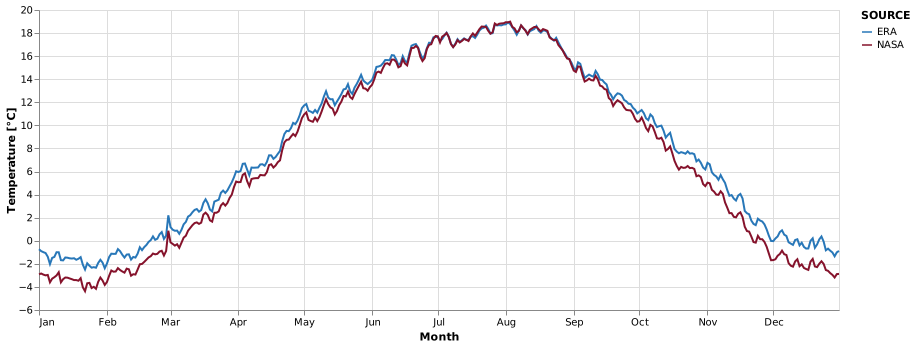
So let’s see what we’ve got here. The line chart above shows quite an interesting pattern. The development of temperature over the year is similar, with similar episodes of decrease and increase in both cases. It can be seen that NASA POWER’s temperature is generally lower. However, an interesting difference appears in the summer months, when both datasets show very similar values and there is almost no gap between the two lines. I am wondering what the reason for this is. I will try to find out in the future!
Let’s look now on one specific year (2025) and see how the temperature development looks like in that year. For this, we will use the same function wide_to_long to reshape our data but before that we will select only the data for the year 2025. It is also good to realize that I had to use the variable comp_df instead of comp_df_3, because the latter one is already aggregated and we need the original data for this task.
# select one specific year
df_25 = comp_df[comp_df['DAY'].dt.strftime("%Y").astype(int) == 2025]
df_25_b = (
    pd.wide_to_long(
        df_25,
        stubnames=["TEMP", "RAIN"],
        i="DAY",
        j="SOURCE",
        sep="_",
        suffix=r"w+",
    )
    .reset_index()
)
df_25_bNow that we have a similar dataset as in previous case, we can create again the line chart, but this time it will be only for the year 2025.
alt.Chart(df_25_b).mark_line().encode(
    x=alt.X(
        "DAY:T",
        title="Month",
        axis=alt.Axis(format="%b")
    ),
    y=alt.Y(
        "TEMP:Q",
        title="Temperature [°C]",
        axis=alt.Axis(tickCount=10)
    ),
    color=alt.Color(
        "SOURCE:N",
        scale=alt.Scale(
            domain=["ERA", "NASA"],
            range=["#377537", "#C8AC0E"]
        )
    )
).properties(
    width=800
)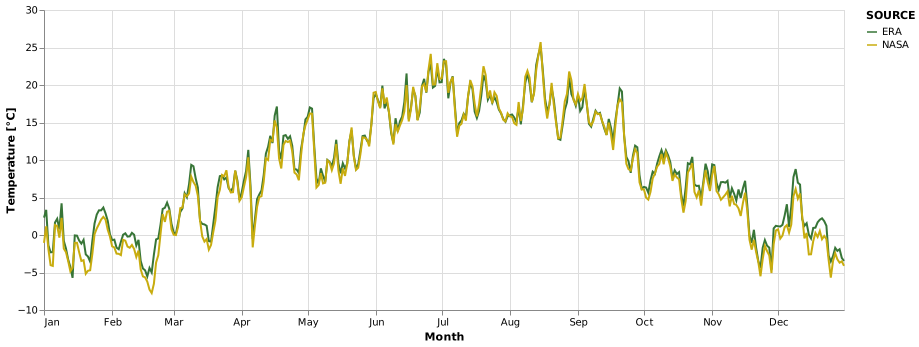
Again, the different datasets show quite a similar pattern of temperature development over the year 2025. And again, it seems to me that summer months indicate similar values in both datasets compared to the rest of the year. This is quite an important finding and can have an impact on using these datasets for more specific purposes. Maybe it is due to the different spatial resolution, but the different algorithms used for calculating temperature could also play a role. Maybe scientific papers could give us more information about this.
In the last part, let’s finally use the precipitation data and visualize the differences between our datasets again. We will continue with the year 2025. There are two main differences between the last approach and the previous ones. Firstly, I only use a filter for the year 2025 and not the wide_to_long function, because the Altair library has the transform_fold function, which can be used for a similar purpose as the wide_to_long function. Secondly, I can use the groupby function inside Altair by using the sum function for alt.Y and month aggregation for alt.X. This is because we want to see the total precipitation for each month in the year 2025. This is quite an important step in realizing that we have several options in data science for reaching the same goal.
rain_df = comp_df.copy()
rain_df = rain_df[rain_df['DAY'].dt.strftime("%Y").astype(int) == 2025]

alt.Chart(rain_df, title = "Monthly precipitation 2025").transform_fold(
    ["RAIN_ERA", "RAIN_NASA"],
    as_=["VARIABLE", "VALUE"]
).mark_bar().encode(
    x=alt.X("month(DAY):T"),
    xOffset="VARIABLE:N",
    y=alt.Y("sum(VALUE):Q", title = "Precipitation [mm/month]"),
    color="VARIABLE:N"
).properties(
    width=800
)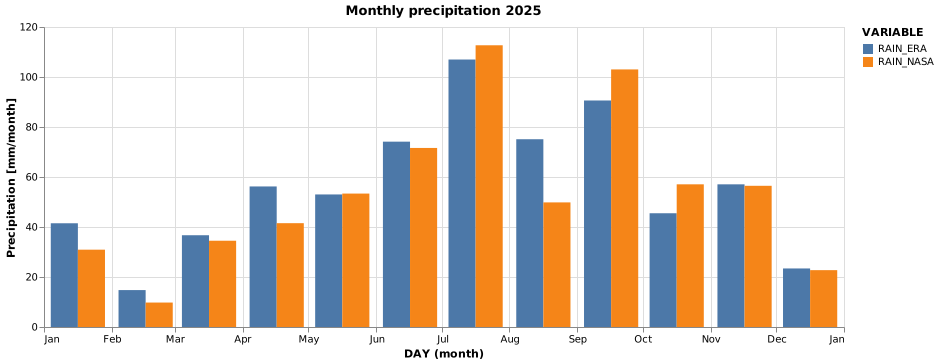
So, now we see our precipitation monthly values for year 2025 and their differences between the datasets. I found quite an interesting aspect – estimates/aggregation of both datasets could be the same for some months (May, Nov), however they can differ quite a lot like in January when difference is more than 10 mm of rain column. This should be also considered as an important aspect in using the datasets for more practical issues in future! By the way, you can easily change the filtering part ( comp_df[comp_df[‘DAY’].dt.strftime(“%Y”).astype(int) == 2025]) to the different year and see the differences (or similarities). ⚙️🌱💡
So let’s conclude! I learned a lot from this simple analysis. Our datasets differ in spatial and temporal resolution (as we already discussed in part 1), and in their values, but they behave quite similarly over longer periods. They show some similar patterns worth considering, and it is good to check the scientific literature to find out how to use them properly and more efficiently.
In upcoming data science session, I will check wind speed, wind direction and maybe also check some practical issues such as spring frost (harming our fruit orchards near cottage) and its development through the time. Until next time — keep wrangling the weather! 🌦️📊